.png)
Signing and authenticating with SMS
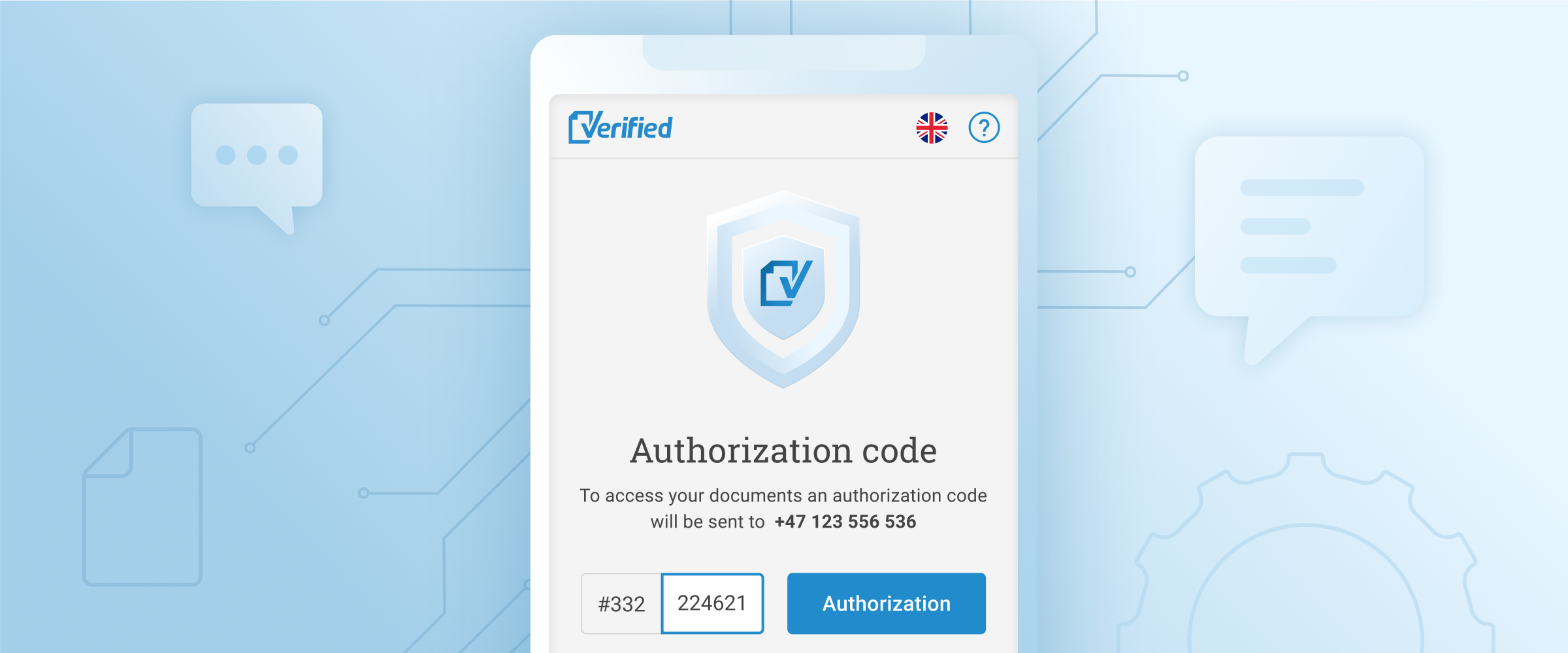
This will allow you to reach even more people than before, such as in situations where you might not have their personal number or they’re from a country with no support for eID.
This release consists of 3 main parts:
-
SMS Signing - using SMS for signing documents
-
SMS Authorization - using SMS as an authentication method (as part of Verified Secure) so that recipients will have to confirm their identify before accessing documents
-
Quality of life improvements - a collection of smaller changes across the board to make using SMS a smoother experience
1. SMS signing
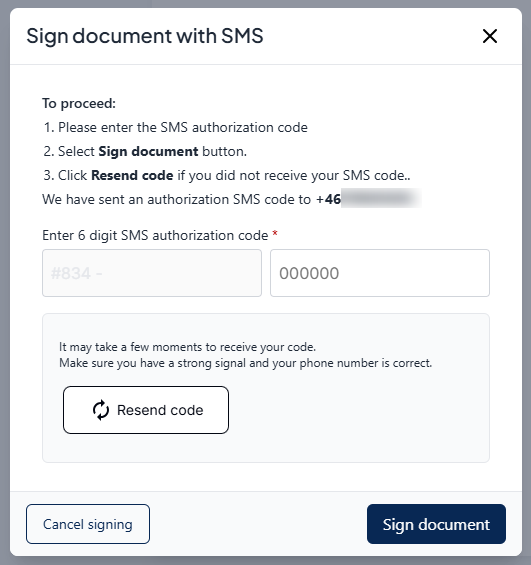 |
| Signing with SMS is as simple as entering a 6 digit code |
When you create an envelope, you will be able to select SMS as a signing method. After the envelope has been published and the recipient has opened the invitation, they will go through the signing process. Once they are ready to sign they will receive a confirmation code via SMS. Entering that code will result in the signing of the document and the phone number will show up in the activity log of the signed document (along with the recipient's name).
2. SMS Authorization
This is a service that can be used in two scenarios:
- using SMS as an authentication method or
- notifying the recipient via SMS
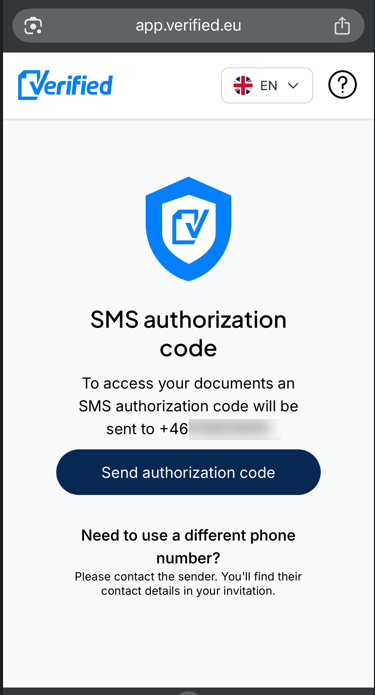
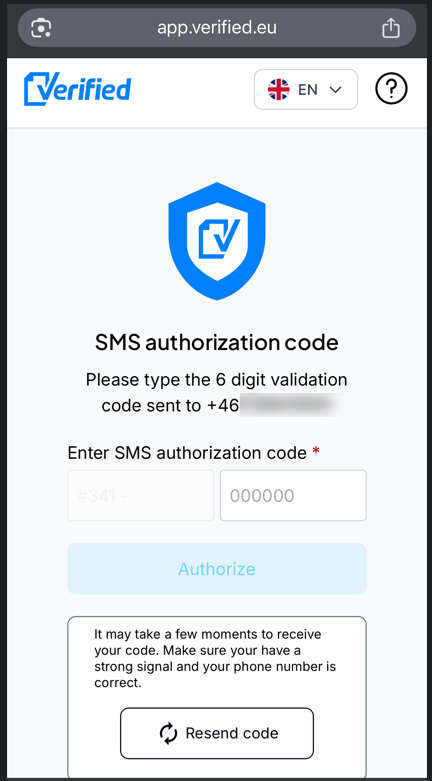
The process consists of two simple steps:
 |
 |
|
| 1. Press the button to receive a code via SMS | 2. Enter the code in the next step |
2.1 Using SMS as an authentication method
If you want to request that recipients authenticate before accessing the documents and you can not use eID, then SMS can be used as an authentication method. The recipient will receive their invitation via email (SMS notification and SMS authentication are mutually exclusive; more info in the 4.6 section below) and then they will reach the SMS Authorization page. There, they will be sent a confirmation code via SMS which they would need to enter in order to proceed.
2.2 Notifying recipients via SMS
This is an option that was already available in the Verified Platform, however now it will use the Authorization app to provide a smoother user experience.
When creating an envelope and adding a recipient, you will be able to choose if you want to notify the recipient via SMS. In that case the invitation to sign the document will not be sent via email, and the recipient will get the invitation on SMS instead. After they open the invitation they will go through the SMS authorization page, and they will need to enter a code received via SMS in order to proceed.
This step is required for security reasons (see section 4.4 further down for more info).
3. Quality of life improvements
In addition to the main features described above, we also added a bunch of smaller quality of life improvements.
3.1 The “use my details” button now fills the phone number as well
In the default flow, when the sender wants to set themselves as a recipient, the “Use my details” button will auto-fill the phone number as well. They will also have the option to update the phone number during that step.
3.2 Better grouping for countries' phone prefixes
Right now we have over 30 countries to choose from when setting the phone number prefix. We’ve added the nordic countries at the top of the list for easier access.
3.3 Increased greeting message length when using SMS notifications
For SMS notifications we had to keep the greeting under 100 characters (so it would fit in one SMS). We’ve increased the limit to 5 SMS so now you will be able to add longer greetings
3.4 One Time Code password autofill
In the case of using both SMS signing and SMS authorization the recipient will receive a code. We’ve added auto-filling to make that step as painless as possible. After you will receive the code, a popup will ask you if you want to auto fill the form.
This feature is only supported in the following scenarios:
-
Android smartphones: just the Chrome browser (v84 or higher)
-
iOS smartphones: iOS v14 or higher, only on Safari and with the default keyboard
3.5 Explicit choice of authentication level
We have 3 levels of authentication in terms of security. This is something that the senders will explicitly have to choose from,
- eID
- SMS
Additionally, you can read more about them here: What are the different authentication levels?
4. FAQ
Here is some additional information that might be useful.
If you have more questions, let us know about it
4.1 How can I use these features?
These features are enabled for all the Verified platform users.
Simply create a new envelope and you will see the options
- SMS signing - in the signing methods dropdown
- Medium (SMS authentication) - as an authentication level
- Notify by SMS - this option was available before but now it uses the new Authorization app (described in section 2) as part of its flow
Additionally, API users can also make use of these options. You can read more about it in our API documentation
4.2 What countries are supported?
Currently you can send SMS via the Verified platform to the following countries:
|
Argentina |
Hong Kong |
Poland Portugal Romania Slovakia Slovenia Spain Sweden Switzerland Ukraine United Kingdom USA |
If you need to send an SMS to a country that is not on this list contact our support team (support@verified.eu) and we will make it available.
4.3 What if the recipient did not receive the SMS?
An SMS failure can happen anywhere during the communication line, the most common being when the mobile phone is out of network coverage or not available. Usually the problem will be solved if the recipient tries again later in an area with better reception.
4.4 Why is there a need to send an extra SMS for notifications?
This is a security step needed as we use an url shortener to make the link (which is over 1000 characters long) fit in the SMS. To ensure that the short url is not susceptible to brute force attacks, we had to add this additional step that requires the recipient to confirm their phone number
4.5 What if a recipient wants to use a different phone number, or if the sender used a wrong one?
Both in the case of SMS signing and SMS authorization we provide contextual helpful information for the recipient so that they are aware of what they need to do if the phone number needs to be changed. They will need to contact the sender which in turn will need to edit the recipient’s personal info and change the phone number in the Verified Dashboard
4.6 Why can’t I select notify by SMS and Authenticate with SMS at the same time?
In order to make the SMS authentication process more secure, the notification method and the authentication method must be distinct.
4.7 How do the SMSs look?
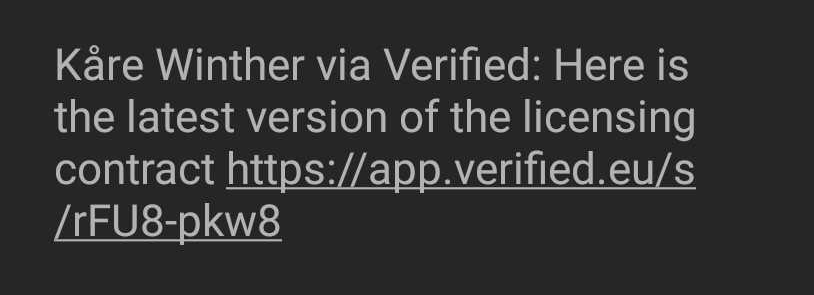
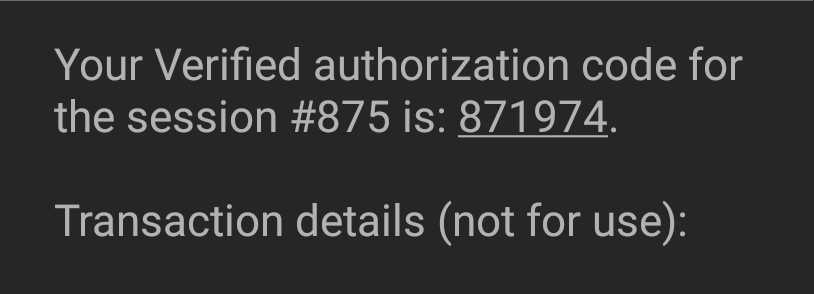
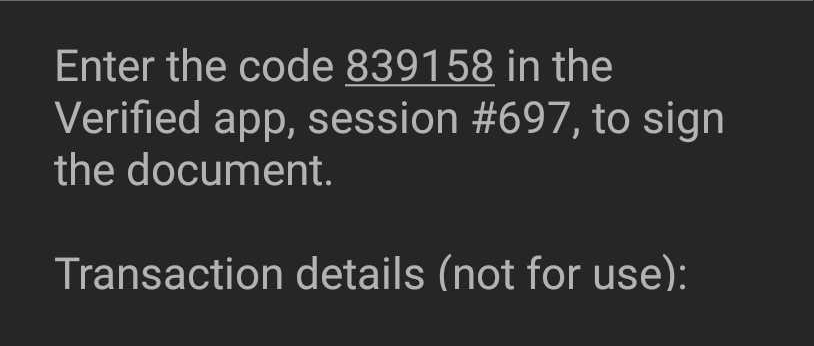
There are 3 types of SMSs that get sent at the moment in the Verified platform:
 |
|
SMS invitation Includes the sender name, greeting and link to sign the documents |
 |
|
SMS authorization Includes the 3 digit session ID, 6 digit authorization code, and transaction details |
 |
|
SMS signing Includes the 3 digit session ID, 6 digit code for signing, and transaction details |
Here's what those mean:
-
Session id
The 3 digit code that identifies your current signing or authentication session. This can be useful in situations where you're receiving multiple SMSs in a short interval and you need to know which SMS belongs to which action. The session ID in your SMS must be identical to the session ID that you will see in the Verified app.
-
Signing / authorization code
The 6 digit code that you will need to enter in the Verified App in order to complete your signing or authorization actions. This is something that will get auto-filled if you meet the criteria described in section 3.4
-
Transaction details
This text will show up in the signing and authorization SMS, and is required in order to enable the the auto-fill functionality described in section 3.4
While you may be wondering why other apps allow for OTP auto-filling without the need of that additional text, the simple explanation is that those are native mobile apps, which you need to install on your phone, while Verified is a web app, which runs in any browser, regardless if it's on phones or desktop devices. This is also the standard way to implement OTP auto-fill.
4.8 Are these features available via API?
Yes, they are are covered in our API documentation