.png)
Known Issue - How to clear the browser cache to use the latest version of Verified Platform
A Verified update was released, focusing on supporting a set of upcoming features.
In some cases, the end-users may encounter difficulties when trying to access the platform, which are caused by the locally cached data.
If you encounter difficulties accessing the platform, please follow these steps to remediate the problems.
FOR USERS THAT HAVE RESTRICTED ACCESS TO THE BROWSER SETTINGS, PLEASE FORWARD THE BELOW INSTRUCTIONS TO THE IT DEPARTMENT OF YOUR COMPANY.
THE FOLLOWING INSTRUCTIONS CAN BE FOLLOWED BY ANY USER WHO HAS THE REGULAR PC ACCESS.
CLEARING THE CACHE OF DESKTOP BROWSERS
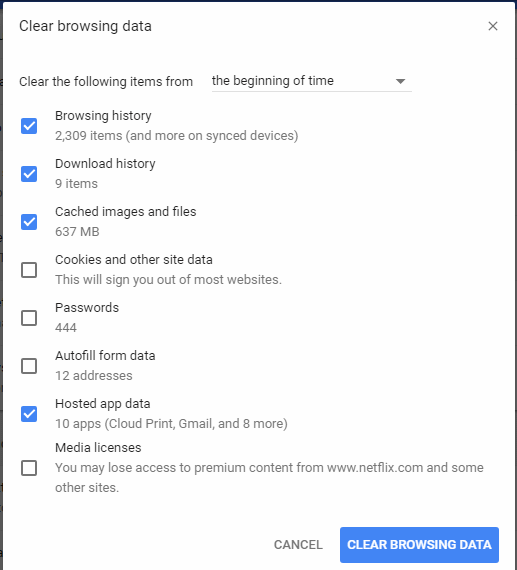
Chrome
- Paste chrome://settings/clearBrowserData in the address bar.
- Select the Advanced tab in the Clear browsing data window.
- Select the following forms of browsing data from the list:
- Browsing history.
- Download history.
- Cookies and other site data.
- Cached images and files.
- Select All time from the Time range drop-down menu.
- Click Clear Data.
Firefox
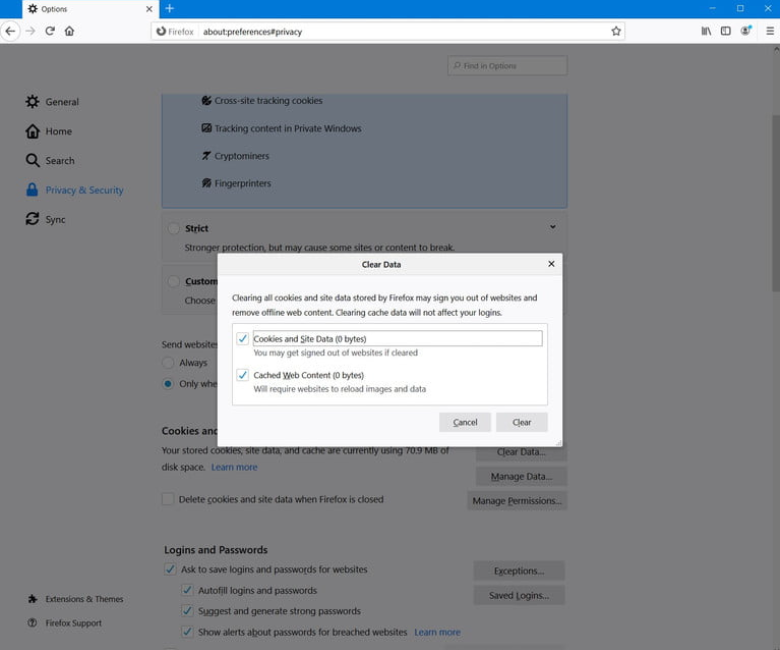
- Paste about: preferences#privacy in the address bar and press Enter.
- Scroll down to the History section and click Clear History.
- Select the following forms of browsing data from the list:
- Browsing & Download history.
- Cookies.
- Cache.
- Select Everything from the Time range to clear the drop-down menu.
- Click OK.
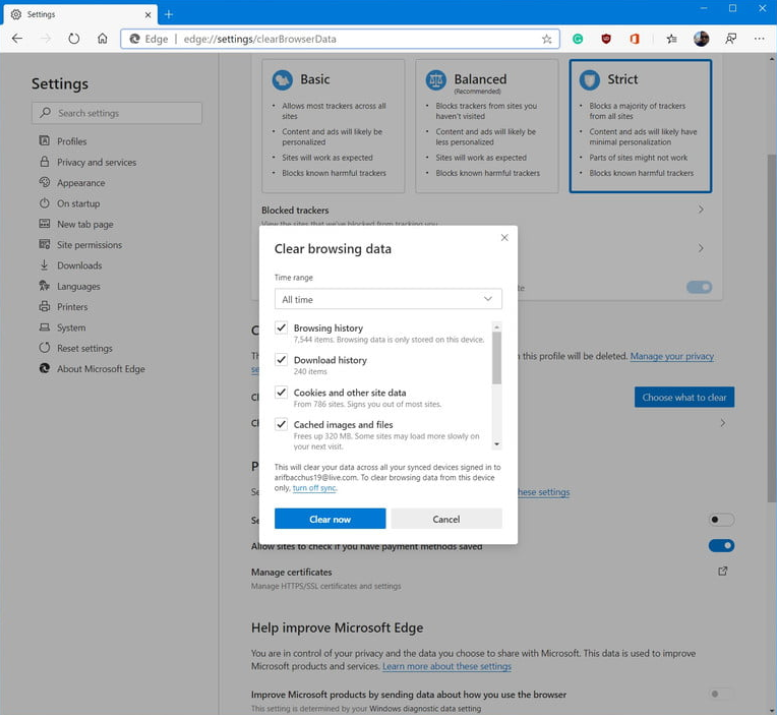
Microsoft Edge
- Paste edge://settings/privacy in the address bar and press Enter.
- Click Choose what to clear in the Clear browsing data section.
- Select the following forms of browsing data from the list:
- Browsing history
- Download history
- Cookies and other site data
- Cached images and files
- Select All time from the Time range drop-down menu.
- Click Clear now.
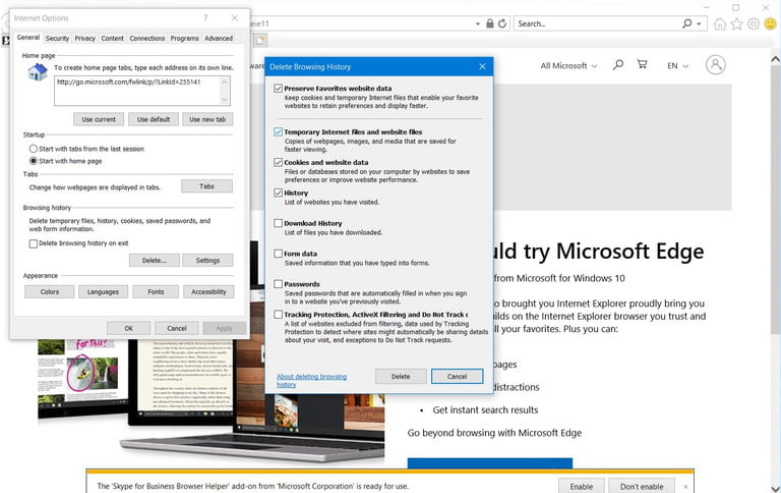
Internet Explorer
- Click the Gear Icon in the top-right corner of the browser window.
- Navigate to Safety, then click Delete browsing history.
- Uncheck Preserve Favorites website data.
- Select the following forms of browsing data from the list:
- Temporary Internet files and website files.
- Cookies and website data.
- History.
- Click Delete.
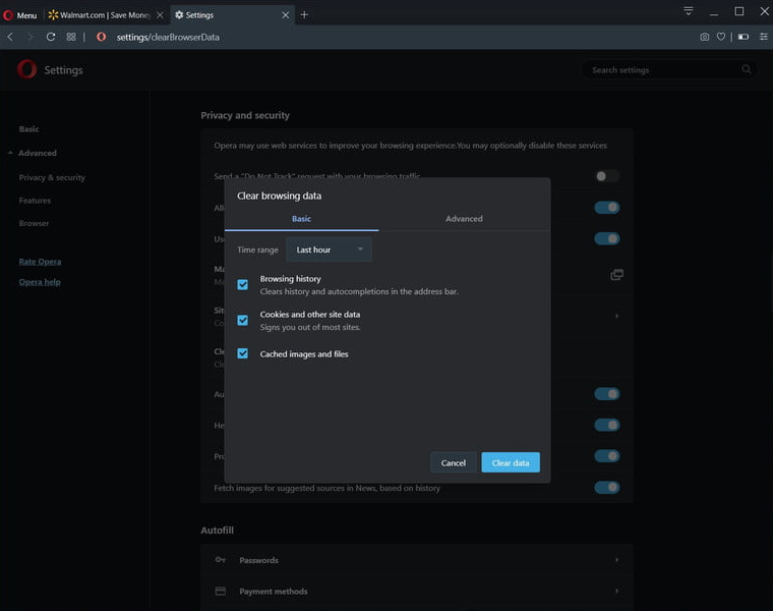
Opera
- Paste settings/clearBrowserData in the address bar and press Enter.
- Select the following forms of browsing data from the list:
- Browsing history.
- Download history.
- Cookies and other site data.
- Cached images and files.
- Select All time from the Time range drop-down menu.
- Click Clear Data.
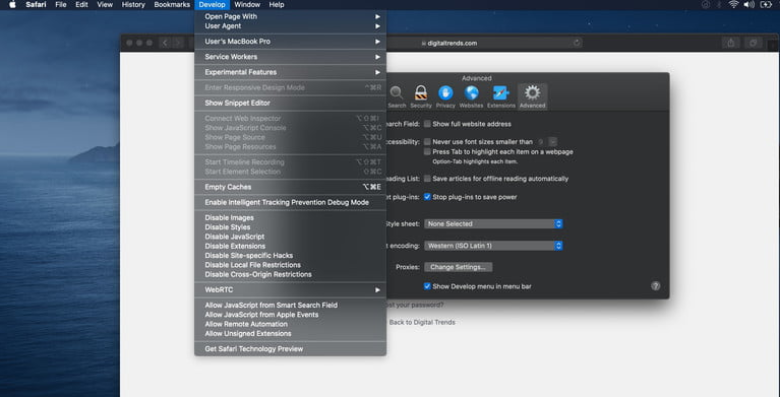
Safari
- From the drop-down menu, click Clear History and Website Data.
- Choose a time range.
- Click Clear History.
- Quit the browser.
Clearing Cache Video Tutorial for Various Browsers:
CLEARING THE CACHE OF MOBILE DEVICE BROWSERS
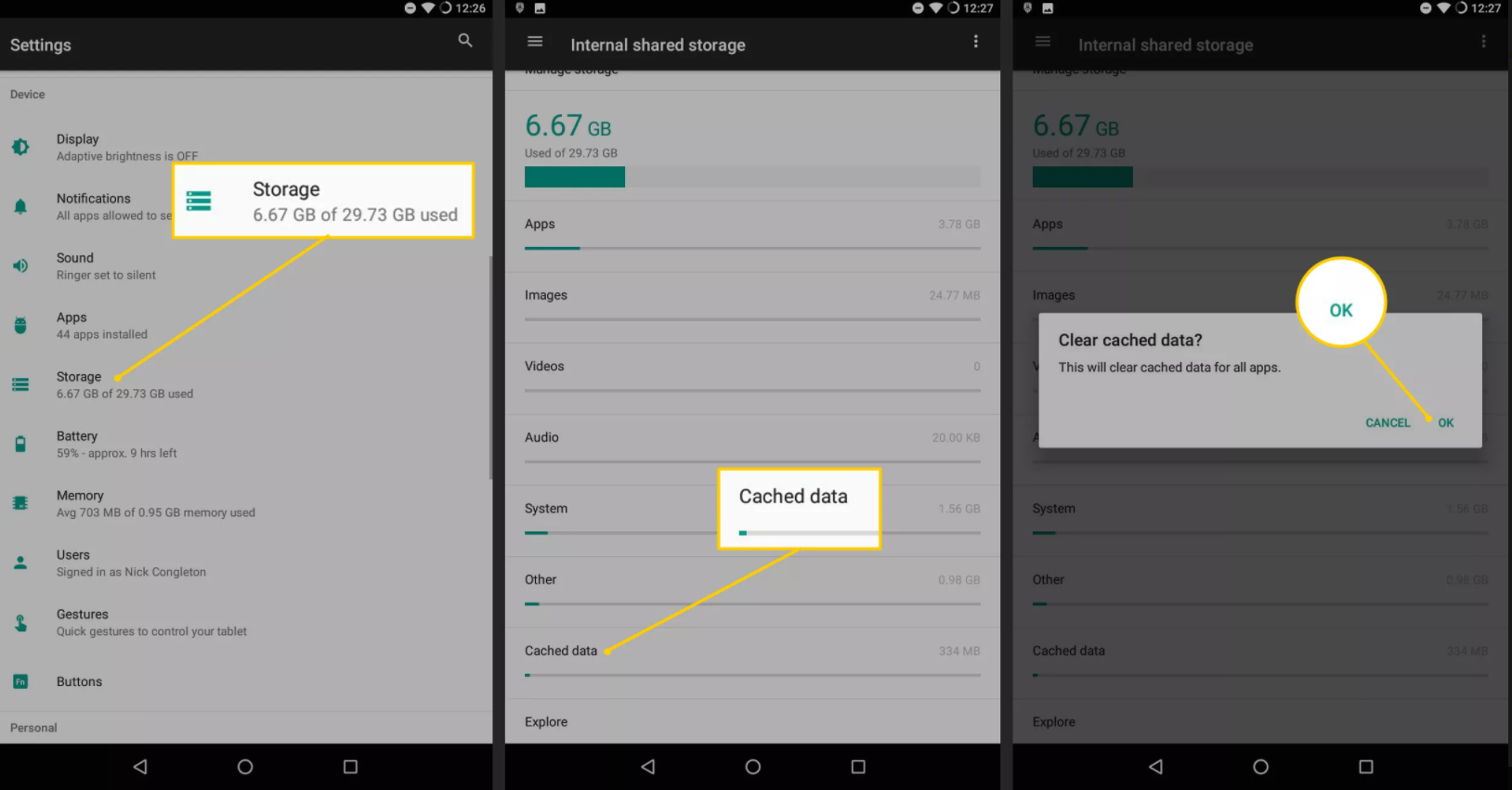
Android
- Steps may be different depending on your phone model and operating system version.
- Tap Settings
- Tap Application Manager.
- Tap the All tab.
- Tap your web browser.
- Tap Clear Data
- Tap Clear Cache.
- Quit the browser.
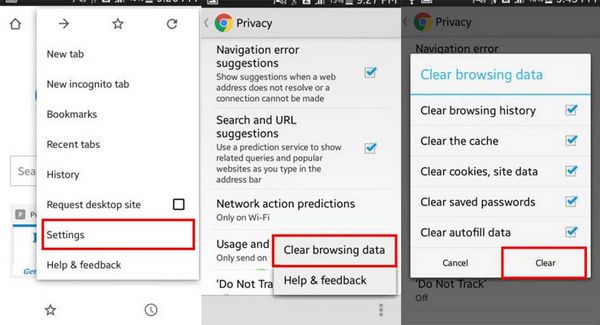
Chrome for Android
- Tap Chrome menu > Settings.
- Tap Privacy.
- Tap Clear Browsing Data.
- Tap the Time Range drop-down menu.
- Tap All Time.
- Select Cookies and Site Data and Cached Images and Files from the list.
- Tap Clear data.
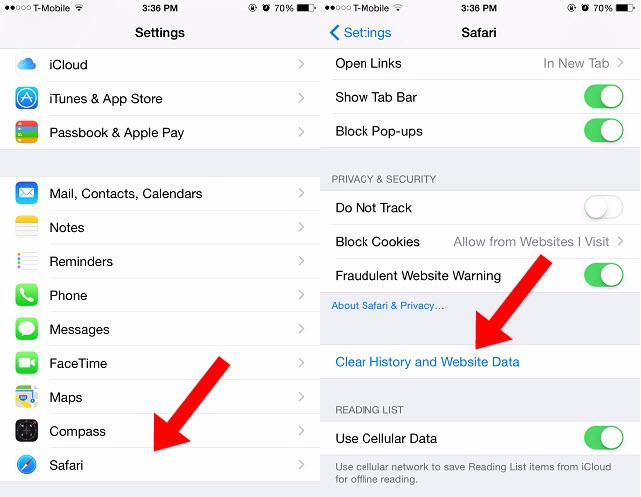
Safari for iOS
- Tap Settings.
- Tap Safari.
- Tap Clear History and Website Data
- Tap confirm.
- Quit the browser.
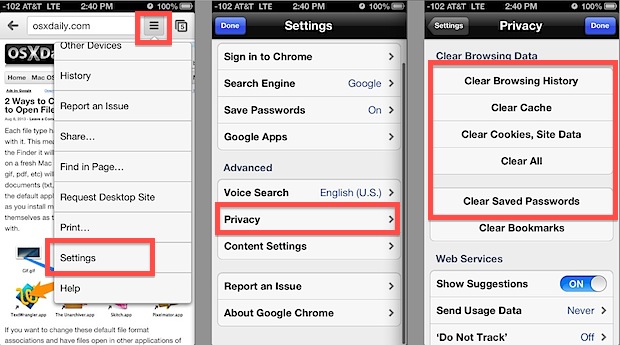
Chrome for iOS
- Tap Chrome menu > Settings.
- Tap Privacy.
- Tap Clear Browsing Data.
- Check the data to clear.
- Tap Clear Browsing Data.
____________________________________________________________
This will tell the browser to discard whatever version of the page it has saved, for performance reasons, and load the new version.
Normally we wouldn't want to burden our users with such a request, but this is a particular case.
Thank you for your patience and understanding!