.png)
Add/remove user as an admin
Updated
Invite a user
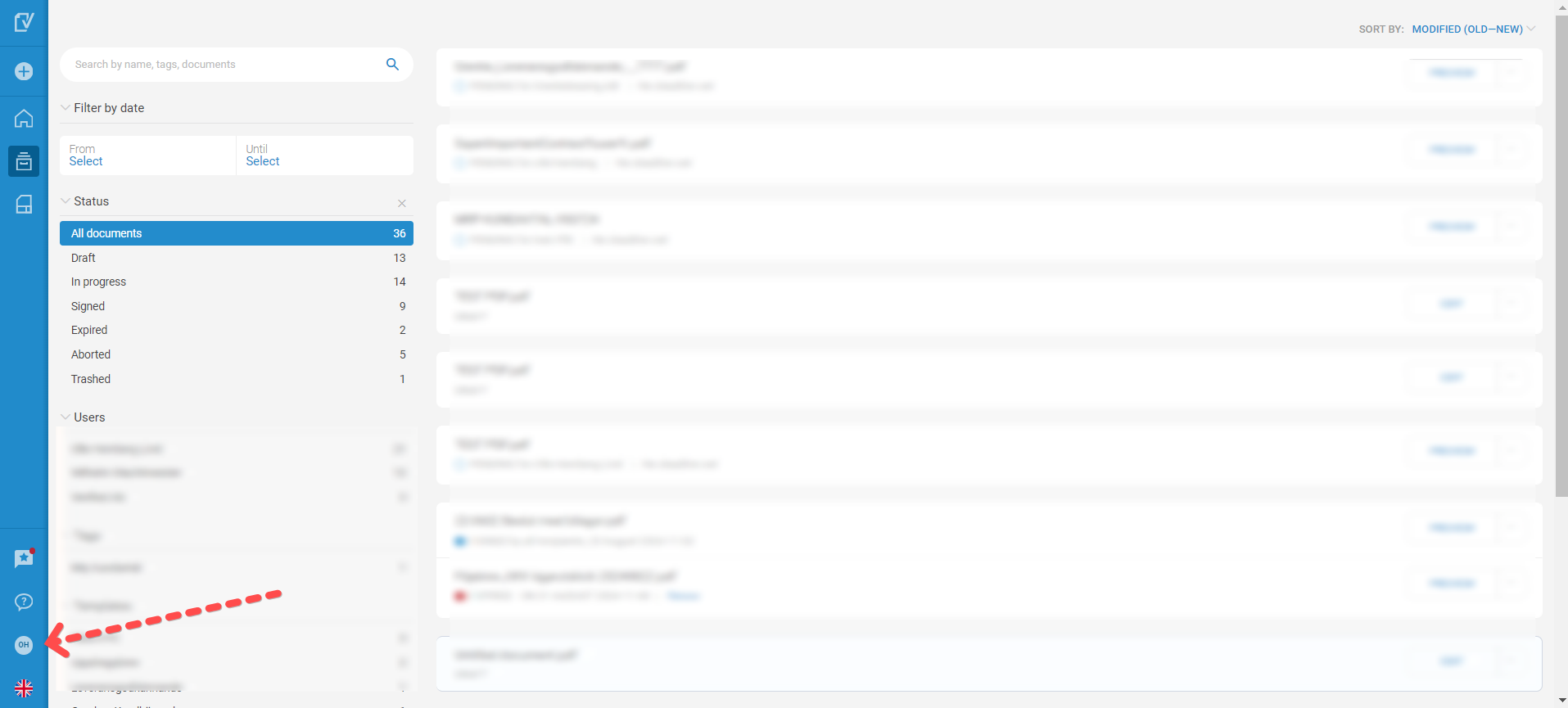
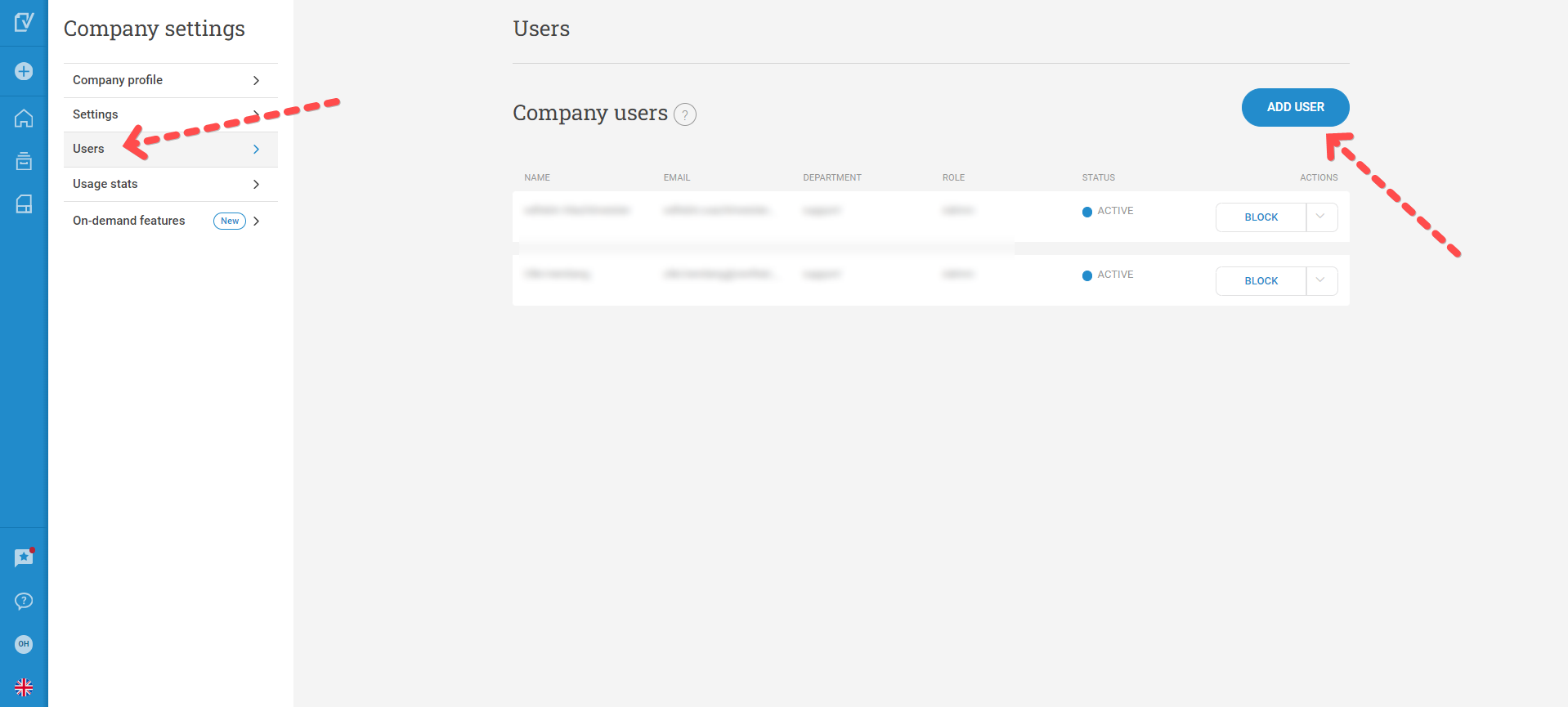
Click on your initials in the lower left corner, select Company settings. Then Users > ADD USER. Write the person's name, email address, select a role and create.
The person has 24 hours to accept the invitation by clicking on the link in the email and choosing a password.
The language in your profile controls which language will be in the invitation email.
ATTENTION! Adding an user may incur an additional cost. Please review your agreement if you are unsure.
Remove/change a user role
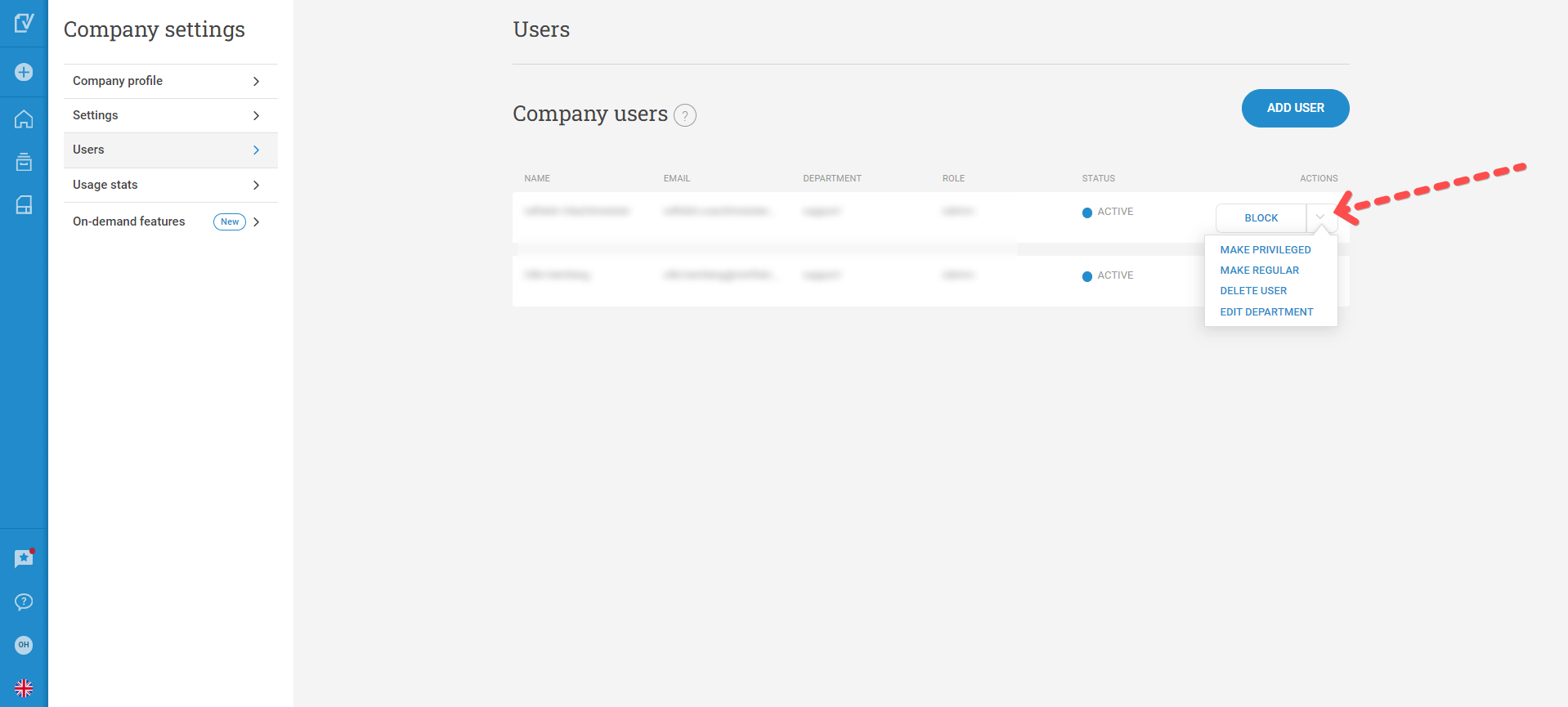
Click on the down arrow next to the users name. Here you can either remove or change the role.
Note, if you remove a user, the envelopes this user has created will NOT be deleted. Also, always keep one active Admin user for your account